
Upload your photo
Choose an image or start with an example.
Photo Tools Object Remover
Brush away unwanted objects and keep the moments that matter. Edit for free, right in your browser.
Drop an image here.
JPG, PNG, WebP · Up to 20 MB
Illustrative EraserApp example — not a result from this web tool.
Choose an image or start with an example.
Paint over what you want to remove, including its edges.
Compare the result, make adjustments if needed, and save your photo.
Everyday photo cleanup
From travel snapshots to everyday moments, small distractions can take attention away from the picture. Here are a few places to start.
 Travel photos
A stray bag, bin or small object can distract from a beautiful scene. Remove it and check that the surrounding ground and details still look natural.
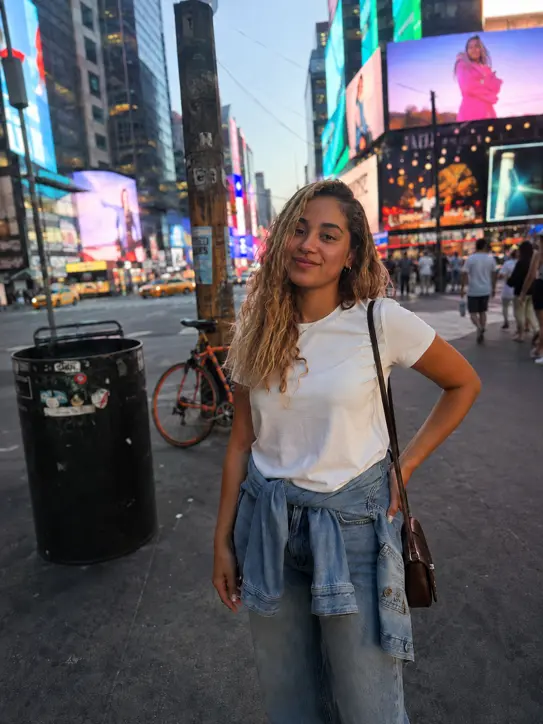 Wires & cables
Thin wires and cables can interrupt an otherwise simple background. They're often easier to remove against open sky or plain surfaces than detailed architecture.
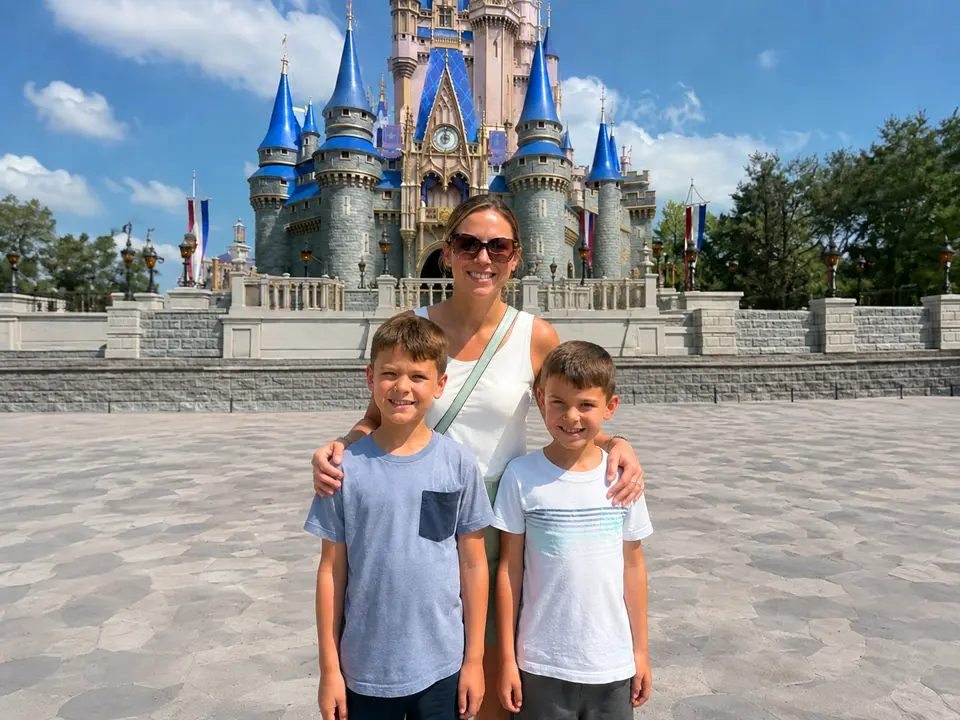 Everyday moments
Tidy up unwanted items around your subject—on a table, beside a wall or near the edge of the frame—without changing the rest of the composition.
A little behind the magic
Object removal uses the surrounding image to rebuild the selected area. The result is an estimate of what could be behind the object—not a recovery of the original hidden pixels.
Small selections and simpler backgrounds often work better. Detailed patterns, faces and overlapping subjects can be harder to reconstruct.
Better results start with the selection
Brush slightly beyond the object. Don't forget shadows or small details connected to it—they can leave visible traces.
Removing one object at a time gives you more control. If the result looks uneven, adjust the selection and try again.
Look closely at straight lines, repeating textures and nearby subjects. Use Before/After to spot changes that might be easy to miss.
Good to know
Large objects, complex textures and overlapping people may leave visible artifacts. Try a smaller selection or another pass if the result doesn't look right.
The current version processes an editing copy of up to approximately 2MP. Larger images require confirmation before resizing.
EraserApp for iPhone
EraserApp is coming soon.